Invite each person with the right role. Everyone can protect their account with two-step sign-in, and on Business and Enterprise your company's sign-in and an audit log keep your workspace under your control.
Who can do what, how people sign in, and what is written down afterwards. These cases show the parts teams use most.
lea@example.comOwner
sam@example.comAdmin
dev@example.comMember
support@example.comViewer
Roles
The right role for each person
A team of five makes its lead the owner, one colleague an admin, two developers members and the support manager a viewer. Developers add and change monitors and acknowledge incidents. The viewer sees every monitor and incident, gets alert emails, and changes nothing. Only the owner and the admin touch the team, billing, API keys and alert channels.
example.com
TXTVerified
Single sign-on required
Single sign-on
Company sign-in, required for everyone
A company on the Business plan proves example.com with a TXT record and connects its Okta app. New colleagues join the workspace the first time they sign in, with the role chosen for them. With “Require single sign-on” on, everyone but the owner signs in through Okta every 24 hours, while the owner keeps a password in case Okta is down.
Two-step sign-in on
Recovery codes left10
Two-step
A stolen password that is not enough
Each person turns on two-step sign-in on their own account page, with an authenticator app. From then on a password alone opens nothing: signing in also asks for the 6-digit code, and wrong codes count like wrong passwords. Ten recovery codes cover a lost phone. A workspace cannot force it, so ask your admins to turn it on.
Authorization: Bearer mk_8c41d2e7…PATCH /api/v1/orgs/org_…/monitors/mon_…{"paused": true}200 OK
API keys
A deploy script with one narrow key
Your deploy pipeline pauses a monitor before a release and resumes it afterwards. Give it its own API key with only “Update monitors”, so a leaked key cannot delete anything or read your servers. The key is shown once; the list shows when it was last used and its requests over 30 days. Regenerate it if it ever leaks.
sam@example.com
Escalation changed17:42
Webhook deleted17:44
Audit log
Who changed the escalation on Friday?
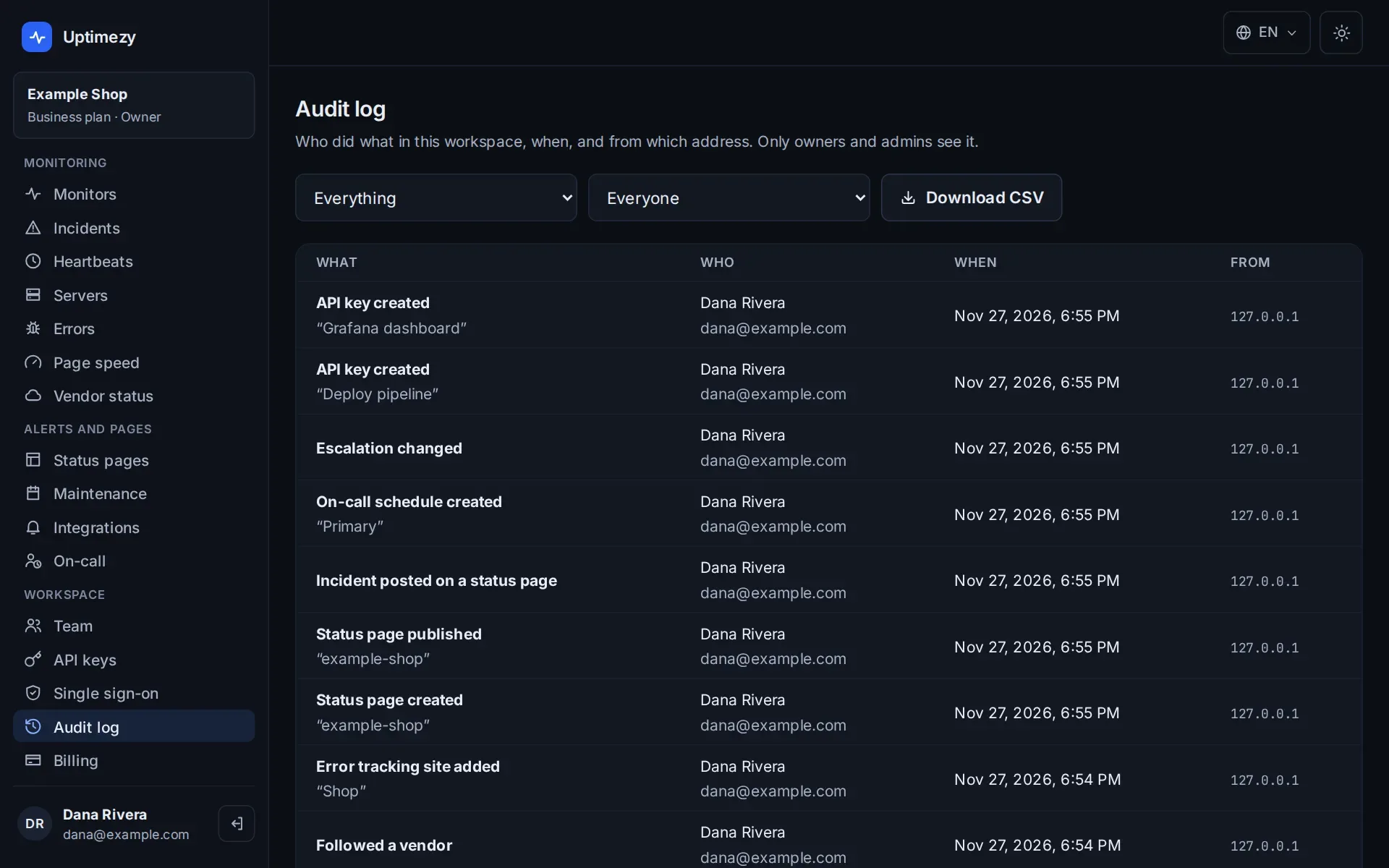
Alerts went to the wrong place over the weekend. On the Business plan, open the audit log, choose the alerts and integrations category, and read who changed the escalation or deleted a webhook, when, and from which address. Download the entries as a CSV file for your records; the download itself is recorded too.
16:00Member removed
16:05API key replaced
16:06API key replaced
Offboarding
When someone leaves the company
Remove the person on the “Team” page and they lose the workspace at once, together with the AI assistants they connected to it. API keys belong to the workspace, not to a person, so the keys they knew keep working: regenerate those. If your company uses single sign-on, also remove them at your provider.
What is included
Four roles
Owners and admins manage the team, billing and where alerts go, members change monitors, heartbeats and servers, viewers only look. An invitation belongs to one email address and works once, for 7 days.
Two-step sign-in
A code from an authenticator app at sign-in, with ten recovery codes. Changing the password or the email address, giving a workspace away or deleting one asks for the password again.
Single sign-on on Business and Enterprise
Members sign in through your company's identity provider with OpenID Connect. You prove your email domain with a DNS record, and you can require it for everyone except the owner.
Audit log on Business and Enterprise
Who changed what, when and from which address, kept for 12 months. Filter it by area or by person, and download it as a CSV file.
API keys with limits
Each key gets only the permissions it needs, area by area, and what it changes is recorded as “API key” with the key's ID.
Yours to give or close
Give a workspace to another member, or delete one workspace or your whole account yourself, at any time. A workspace on the Free plan can go only to a member who owns no workspace yet.
In the dashboard
A screen from the dashboard, with example data.
How it works
1
Choose a role for each person. They get an email with a link.
2
Scan the code with an authenticator app and keep the recovery codes.
3
On Business or Enterprise, add your identity provider and prove your email domain.
app.uptimezy.com
lea@example.comOwner
sam@example.comAdmin
dev@example.comMember
support@example.comViewer
Two-step sign-in on
Recovery codes left10
example.com
TXTVerified
Single sign-on required
The full guide
Team and security, explained
Each chapter opens in place, so the page stays short.
01Four roles, and what each can do
Every person in a workspace has one role. Owners and admins change roles on Team; nobody changes their own role or the owner's.
Read moreShow less
Role
What it can do
Viewer
See every monitor, incident, heartbeat, server and status page, and get alert emails. A viewer changes nothing and cannot acknowledge.
Member
Also add and change monitors, heartbeats, servers and their alert rules, follow vendors, and acknowledge incidents.
Admin
Also manage the team, billing, API keys, chat apps, webhooks, escalation, on-call schedules, status pages, single sign-on and the audit log.
Owner
Everything an admin can do, and give the workspace away or delete it. There is one owner, who cannot be removed.
Whatever their role, each person decides about their own alert emails and can leave the workspace. The owner cannot leave: give the workspace to someone else first.
02Inviting people
An invitation belongs to one email address. The link we send works once, for 7 days, and only for that address.
Read moreShow less
On Team, press Invite a person.
Type the Email address and choose the Role.
Press Send invitation. The invitation waits under Open invitations until it is used or runs out.
Someone without an account chooses a password when they open the link, and joins at once.
Someone who already has an account must be signed in as that account to accept, so a forwarded link is no use to anyone else.
Cancel invitation stops the link. Inviting the same address again replaces the open invitation.
Open invitations count toward the plan's number of members when you invite. The limit is checked again when someone accepts, so a workspace that is full by then refuses them.
With single sign-on turned on, people with an address in your verified domains can also join by signing in through your provider, without an invitation.
03Passwords and two-step sign-in
Every password has at least 10 characters and is stored only as an Argon2id hash. Two-step sign-in adds a code from an authenticator app, so a stolen password is not enough on its own.
Read moreShow less
Open Account with your name or email address at the bottom of the menu. Under Two-step sign-in, press Set up and enter your password again.
Scan the QR code with an authenticator app, or type the key into it.
Enter the 6-digit code the app shows and press Turn on.
Save the 10 recovery codes. They are shown only this once.
Each code works once. A recovery code signs you in when the phone is lost.
Turning it on signs out your other sessions. Turning it off asks for the password and a code.
Five wrong passwords or codes for one address within 15 minutes stop signing in for a while.
Changing your password signs out your other devices and disconnects the AI assistants you connected.
04Single sign-on with your company's provider
On Business and Enterprise, people with an address in your company's domains can sign in through your identity provider. It works with OpenID Connect, so Google Workspace, Microsoft Entra ID, Okta and other such providers work; SAML does not.
Read moreShow less
On Single sign-on, add each email domain, add the TXT record shown at your DNS provider, then press Check now.
At your provider, create an OpenID Connect web app with the address under Redirect URI.
Under 3. Connect your provider, fill in the Issuer URL, the Client ID and the Client secret, choose the Role of new people, switch on Turn on single sign-on and press Save.
A domain covers addresses in that domain exactly: example.com does not cover eu.example.com. A workspace can prove up to 20.
A domain can be proved by one workspace only. We check its record every day, and a domain whose record is gone stops counting.
New people join with the role you chose: member or viewer.
Someone who already has an account confirms once, through a link we email to that address.
Two-step sign-in still asks for its code after the provider.
With Require single sign-on switched on, everyone but the owner opens the workspace only after signing in through your provider, and again every 24 hours: admins, members and viewers. Without it, passwords keep working for everyone.
Read moreShow less
The owner can always sign in with a password, so a broken provider never locks the workspace.
API keys keep working, because they are not people.
Someone who signed in with a password sees Continue with single sign-on and Leave this workspace. Their other workspaces are not affected.
Connected AI assistants follow the same rule as the person who connected them.
For admins and members, the link in an alert email then leads to the dashboard, instead of acknowledging without signing in. The owner's email keeps its one-click link, and viewers' emails have none.
06API keys for programs
An API key lets a program use the API of one workspace, with only the permissions you give it. Owners and admins make keys on API keys.
A key starts with mk_ and is shown once. We keep only a hash of it.
The list shows each key's name, its first characters, its last use and its requests in the last 30 days.
The round-arrow button next to a key, then Regenerate key, gives the key a new secret, and the old one stops at once. The bin button, then Revoke key, ends a key for good.
Keys do not expire, and they belong to the workspace: a key keeps working when the person who made it leaves.
07The audit log
On Business and Enterprise, the audit log records who did what in the workspace, when, and from which address. Owners and admins read it on Audit log, and entries are kept for 12 months.
Read moreShow less
It covers monitors and incidents, heartbeats, servers, error tracking, vendor status, single sign-on, status pages, alerts and integrations, the team, API keys and billing.
Filter it with the two lists at the top: one for the kind of action (Everything at first) and one for the member (Everyone at first).
A program's changes show as API key with the key's ID; the entry that created the key carries its name.
An acknowledgement from the alert email, or a change through an AI assistant, is marked as such.
Our support team's actions show as Our support team, without a name or an address.
Download CSV saves the entries of the chosen filters as a CSV file, for a range of days in UTC or for all 12 months, up to 100,000 rows. The download itself goes into the log.
08When someone leaves
Removing a person on Team takes the workspace away from them at once. A few things are not tied to a person, so check them as well.
Read moreShow less
The AI assistants they connected to this workspace are disconnected with them.
API keys belong to the workspace, so the keys they knew keep working. Give each of those keys a new secret with the round-arrow button next to it.
A webhook's signing secret never changes by itself. To get a new one, delete the webhook and add it again.
If they were on call, their shifts alert the owners and admins until you change the schedule.
With single sign-on, also remove them at your provider.
If the person leaving is the owner, they must first give the workspace to another member: the owner cannot be removed and cannot leave.
09Giving a workspace away, or closing it
A workspace stays yours to hand over or to close. Each of these asks for your password again, and for a code when two-step sign-in is on.
Read moreShow less
Action
Who
What happens
Make owner
The owner
The member becomes the owner and you stay as an admin. Both of you get an email.
Delete this workspace
The owner
The workspace and everything in it are deleted; your account stays.
Delete my account
Each person
The account and the workspaces it owns are deleted.
Deleting is for good: the checks stop, the status pages go offline and the alert channels are removed. To keep a workspace for its members, give it to one of them instead.
Only the new owner can give the workspace back.
A workspace on the Free plan cannot be given to someone who already owns a workspace.
Records of payments are kept, because the law requires them.
Everything you can monitor
Websites, APIs, servers, databases, cron jobs and the services you depend on, in one account.
Providers that support OpenID Connect, such as Google Workspace, Microsoft Entra ID or Okta. SAML is not supported yet.
Can I require single sign-on?
Yes. When the owner or an admin switches on “Require single sign-on”, everyone but the owner must sign in through your provider, and again every 24 hours. The owner can always sign in with a password, so nobody is locked out.
How many people can join?
It depends on your plan: the pricing page lists how many team members each plan has. Open invitations count too.
Can a workspace require two-step sign-in?
No. Each person turns it on for their own account, and the team list does not show who has it on. Single sign-on, on Business and Enterprise, can be required instead.
Do API keys expire?
No. A key works until you regenerate it, which stops the old secret at once, or revoke it, which ends it for good.
What happens to the API keys of someone who leaves?
Nothing: keys belong to the workspace, not to a person, so they keep working. Regenerate the keys that person knew.
Can I give a workspace to someone outside it?
Not directly: the new owner must already be a member. Invite them first, on a plan with room for one more person, then the owner makes them the owner from the team list.