Incident management: what broke, who is on it, and when it ended

Every confirmed failure opens an incident with its cause, the regions that saw it and usually the route to the host. The right people are alerted step by step until someone acknowledges, and the incident ends by itself when the monitor is back. Pausing the monitor or changing what it checks ends it too, without a message.

In practice

Incidents as teams meet them

Most incidents follow the same path: opened, taken on, explained, over. These cases show each part of it.

Teamwork

Two people, one incident, no double work

The shop goes down at 09:12, and Ana and Ben both get the email. Ana presses “Acknowledge” on the “Incidents” page. Ben gets a message with her name, the reminders stop, and the incident shows that Ana is on it. When the shop is back, both of them hear that the incident is over.

Network

Where the packets stopped

A customer's API stops answering. When the incident opens, the route to its host is traced from every place we run checks from, and kept with the incident for 30 days. “Route when it opened” shows each place's route up to the last hop that answered. Many firewalls drop these packets, so a route that stops early is a hint, not proof.

Heartbeats

The backup that did not run

A nightly backup calls its heartbeat address when it finishes. One night it does not, and once the grace time has passed, an incident opens with the cause “No report in time”. It goes through the same escalation as a monitor's incident, and it ends by itself when the next run reports success.

Customers

Telling customers while you fix it

The checkout fails at 14:02. The status page shows the service as down by itself, but that emails nobody. At 14:06 an admin writes an incident on the page as “Investigating”, and every confirmed subscriber gets an email. Updates follow as “Identified” and “Monitoring”, and “Resolved” ends it once the fix holds.

Automation

Taken on by a bot or an assistant

A bot in your own chat tool can take incidents with an API key that has only the “Acknowledge incidents” permission. The incident then names the key, not a person, and whoever was told hears that the key took it. An AI assistant connected over MCP can do the same for the person who connected it.

Review

The same failure, week after week

Once a week, open the “Incidents” page and read last week's lines together. Each one shows the cause, when it started and how long it lasted, for monitors, heartbeats and servers. Three timeouts on the same API in one week point to a problem that keeps coming back, even if each incident ended by itself within minutes.

What is included

The cause, recorded

Each incident keeps the reason, such as “No answer in time” or “Keyword not found on the page”, the regions that saw it, when it started and how long it lasted.

The route, traced

When an incident opens, the route to the host is traced from every region and kept for 30 days (not for DNS monitors).

Escalation steps

Up to 10 steps: alert some people first and others after a delay, then remind the last step, up to 10 times, until someone acknowledges.

On-call schedules

Rotations with shifts of 1 to 28 days and overrides for holidays. A step can page whoever is on call.

Acknowledge from anywhere

From the dashboard, the link in the alert email without signing in, the link in a chat message, the API or your AI assistant. Everyone sees who took it.

Tell your customers

Post the incident on your status page as you investigate and fix it. Subscribers get an email.

In the dashboard

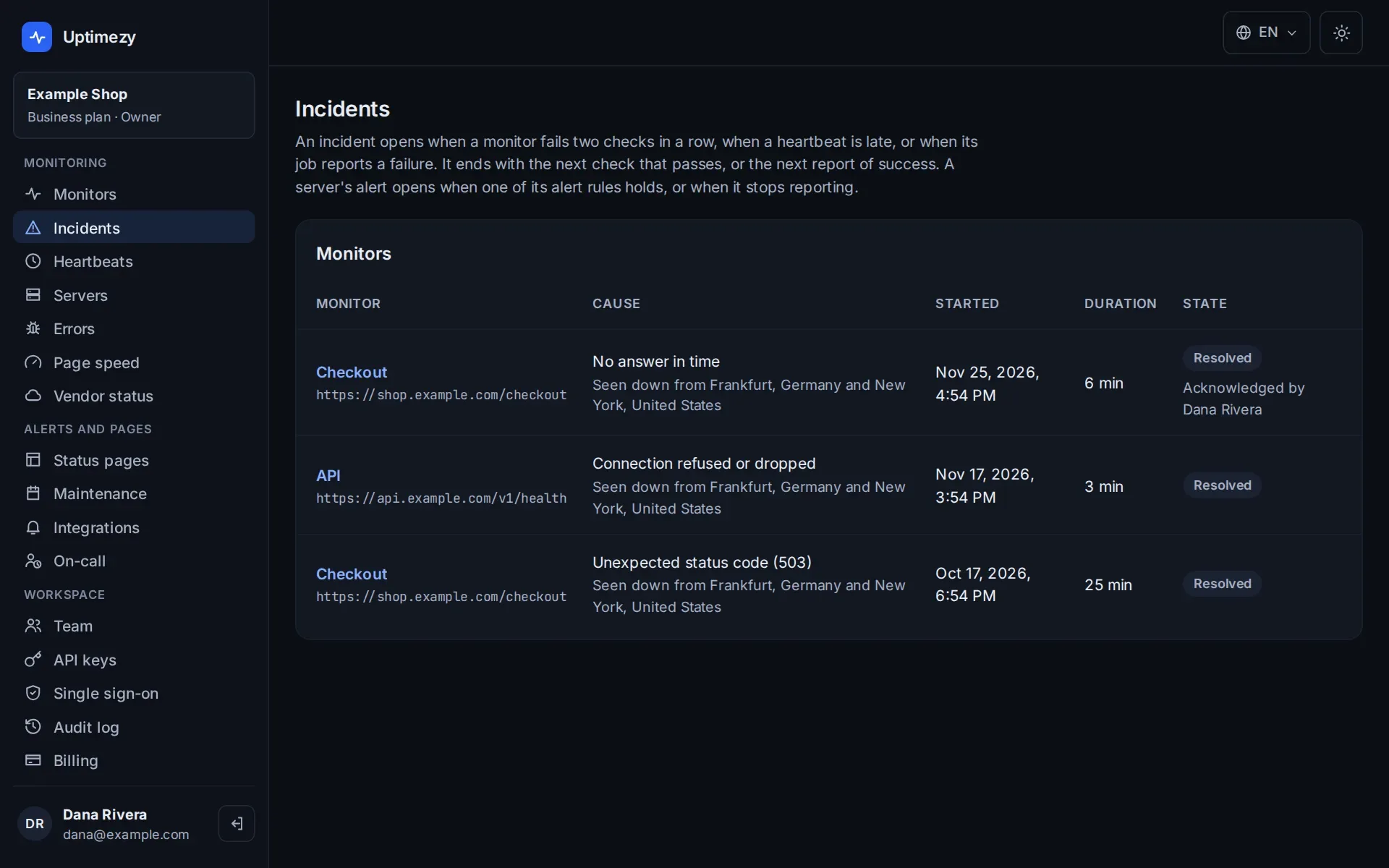
A screen from the dashboard, with example data.

The Incidents page: past incidents with their cause, the regions that saw them, how long they lasted and who acknowledged one.The Incidents page: past incidents with their cause, the regions that saw them, how long they lasted and who acknowledged one.

How it works

  1. Step 1

    An incident opens

    Once regions agree that a monitor is down.

  2. Step 2

    The right people hear

    Step by step, and whoever is on call.

  3. Step 3

    It ends by itself

    When the monitor is back, everyone who was told hears that it is over.

The full guide

Incident management, explained

Each chapter opens in place, so the page stays short.

01What opens an incident

An incident is the record of one outage, from its first failure to its end. Monitors, heartbeats and servers each open incidents by their own rule, and all of them appear on Incidents.

Read moreShow less
Opens whenEnds when
A monitorIt fails two checks in a row and, when other places check too, most of them agreeOne check passes and, when other places check too, most of them agree
A heartbeatIts job does not report in time, or reports a failureThe job reports success again
A serverAn alert rule's metric stays above its limit, or the agent stops reportingA report is back at or below the limit, or reporting starts again

A monitor's incident starts at the first failed check, not the second, so its length covers the whole outage. It keeps the reason and the status code of the check that opened it.

Who hears about an incident, and in which order, is set once for the whole workspace: see alerts and escalation.

02What an incident records

Each incident keeps what you need first: what broke, why, since when, and who is on it. The Incidents page shows the incidents of monitors, heartbeats and servers in three lists, open ones first.

Read moreShow less
ColumnWhat it shows
MonitorThe monitor's name and what it checks, with a link to its page
CauseThe reason in the dashboard's words, such as Unexpected status code with the code, and the places that saw it down when more than one checked
StartedThe time of the first failed check
DurationHow long it lasted, or has lasted so far
StateOngoing or Resolved, and who acknowledged it

The page refreshes by itself every 15 seconds and shows up to 100 incidents in each list. A monitor's own page lists that monitor's incidents. Incidents are kept as long as the monitor exists.

03The route, traced when it opens

When a monitor's incident opens, the route to its host is traced from every place we run checks from and saved with the incident. It answers a question that is hard to ask later: where did the packets stop when it went down?

Read moreShow less
  • The alert never waits for the trace: it starts after the incident is saved and its alert is queued.
  • A host is traced at most once in 10 minutes. When several monitors of the same host go down within 10 minutes, their incidents share the saved routes.
  • Routes are kept for 30 days, then deleted with the check results.
  • Routers with private addresses are hidden, and host names are not looked up.
  • A route that ends with “The last hops did not answer” is common, because many firewalls drop these packets. It is not a failure.

Open the saved routes with Route when it opened on the incident. Members can also start a new trace from the monitor's page while they investigate.

04Taking an incident on

Acknowledging says “I am on it”. The later escalation steps and the reminders stop, and everyone who was told hears who took it.

Read moreShow less
WhereHow
The dashboardAcknowledge on the incident, on Incidents
The alert emailA link to a page that asks Take this incident on?, without signing in; it works until the incident ends, for 7 days at most
A chat appThe Acknowledge link in the message opens the incident on Incidents, ready to acknowledge; sign in if you are asked
An API keyA key with incidents:acknowledge; the incident then shows the key's name
An AI assistantOne that signed in acknowledges for the person who connected it; one that uses an API key acknowledges as that key
  • Owners, admins and members can acknowledge. Viewers cannot, so their emails have no acknowledge link.
  • An incident is acknowledged once, while it is open, and that cannot be undone.
  • When the workspace requires single sign-on, the email's link leads to the dashboard instead, except for the owner.
  • Acknowledging in PagerDuty does not acknowledge the incident here.

Acknowledging does not end the incident: it still ends by itself when the monitor is back.

05How an incident ends

An incident ends by itself. For a monitor, that is the first check that passes and is confirmed; whoever was told that it opened then hears that it is over, and how long it lasted.

Read moreShow less
  • A heartbeat's incident ends with the next report of success.
  • A server's alert ends when a report is back at or below the limit, or when the server reports again after a silence.
  • Pausing a monitor, or changing what it checks, ends its open incident at once, without a message.
  • Changing, switching off or deleting a server's alert rule ends its open alert, also without a message.

Once it has ended, the incident shows Resolved with its full length, and the name of whoever acknowledged it stays on it.

06Telling customers while it lasts

Your status page shows downtime by itself, but it does not explain it. For that, write an incident on the page: it is separate from the incident in the dashboard, and it is what your subscribers get by email.

Read moreShow less
The dashboard's incidentAn incident you write
Opened byThe checks, by themselvesAn owner or an admin, or a program with an API key
Visitors seeA service that is down, and past downtime of 14 days, without addresses or reasonsYour title, its state and your updates
SubscribersGet no emailGet an email for the incident and for each update
EndsBy itselfWhen you post Resolved

Each update has a state: Investigating, Identified, Monitoring or Resolved. The text is plain, up to 2,000 characters, and a page can have up to 20 open incidents.

07Looking back at incidents

Every incident of a monitor also counts on the monitor's page, so a month of incidents becomes numbers you can compare. They are worked out from the incidents themselves, not from single checks.

Read moreShow less

On the monitor's page, choose a Chosen range of whole days in UTC, up to 400 days back, and press Show. The breakdown under it lists:

  • Downtime: the time inside incidents in the chosen days.
  • Incidents: the incidents that started in them.
  • MTBF: the time up, divided by the number of incidents.
  • MTTR: the average length of the incidents that ended.

A falling time to repair is the plainest sign that incidents are taken on and fixed sooner, even in a month with more of them. Incidents are kept as long as the monitor, so a range a year back still has them; check results and saved routes are kept for 30 days.

How these figures are counted, and how to compare them with a goal, is on the SLA monitoring page.
08Incidents for scripts and assistants

What the Incidents page shows can also be read by a program, and a program can acknowledge an incident. Your own tools follow incidents without anyone copying them by hand.

Read moreShow less
WhatRoutePermission
Monitor incidentsGET …/incidents, open first, then the newest, up to 100reports:read
Heartbeat incidentsGET …/heartbeat-incidentsheartbeats:read
Server alertsGET …/server-incidentsservers:read
AcknowledgePOST …/incidents/<id>/acknowledgeincidents:acknowledge
  • A key that only acknowledges needs no other permission. Give it a name your team will recognise, such as Pager bridge: that name is what people see on the incident and in the messages.
  • The MCP tools are list_incidents, list_heartbeat_incidents, list_server_incidents and acknowledge_incident. Each one calls the route above, with the same permission.

A webhook that is told about an incident gets incident.opened, then incident.acknowledged, incident.reminder and incident.resolved as they happen. With escalation steps, only the webhooks a step names are told. An AI assistant connected over MCP can list incidents and acknowledge one for you.

Every field is described in the API reference.

Common questions

Which plans have escalation and on-call?

Escalation steps work on every plan. On-call schedules come with the Pro plan and up.

Does acknowledging stop the alerts?

Yes. Later steps and reminders stop, and the incident shows who took it. It still ends by itself when the monitor is back.

Can I close an incident by hand?

No. A monitor's incident ends by itself with the first check that passes and is confirmed. If a monitor stays down on purpose, pause it: that ends its incident, without a message.

Can I add notes to an incident?

No. Incidents have no notes or comments, in the dashboard or in the API. To tell customers what is going on, write an incident with updates on your status page.

Can an acknowledgement be taken back?

No. An incident is acknowledged once, while it is open, and the name stays on it. It still ends by itself when the monitor is back.

How long are incidents kept?

As long as the monitor exists. The routes traced when an incident opened are kept for 30 days.

More features

All features

The right person, on the right channel.

Learn more: Alerts and escalation

Tell customers before they ask.

Learn more: Status pages

See your site from where your customers are.

Learn more: Multi-location monitoring

Add your first monitor in two minutes

Free plan. No credit card needed.