Alerts that reach the right person

Choose where alerts go and what happens when nobody answers. Every message about a failure says what failed, since when and why.

In practice

Ways teams set up their alerts

Alerts work the same for monitors, heartbeats and servers. These setups show how channels, steps and schedules fit together.

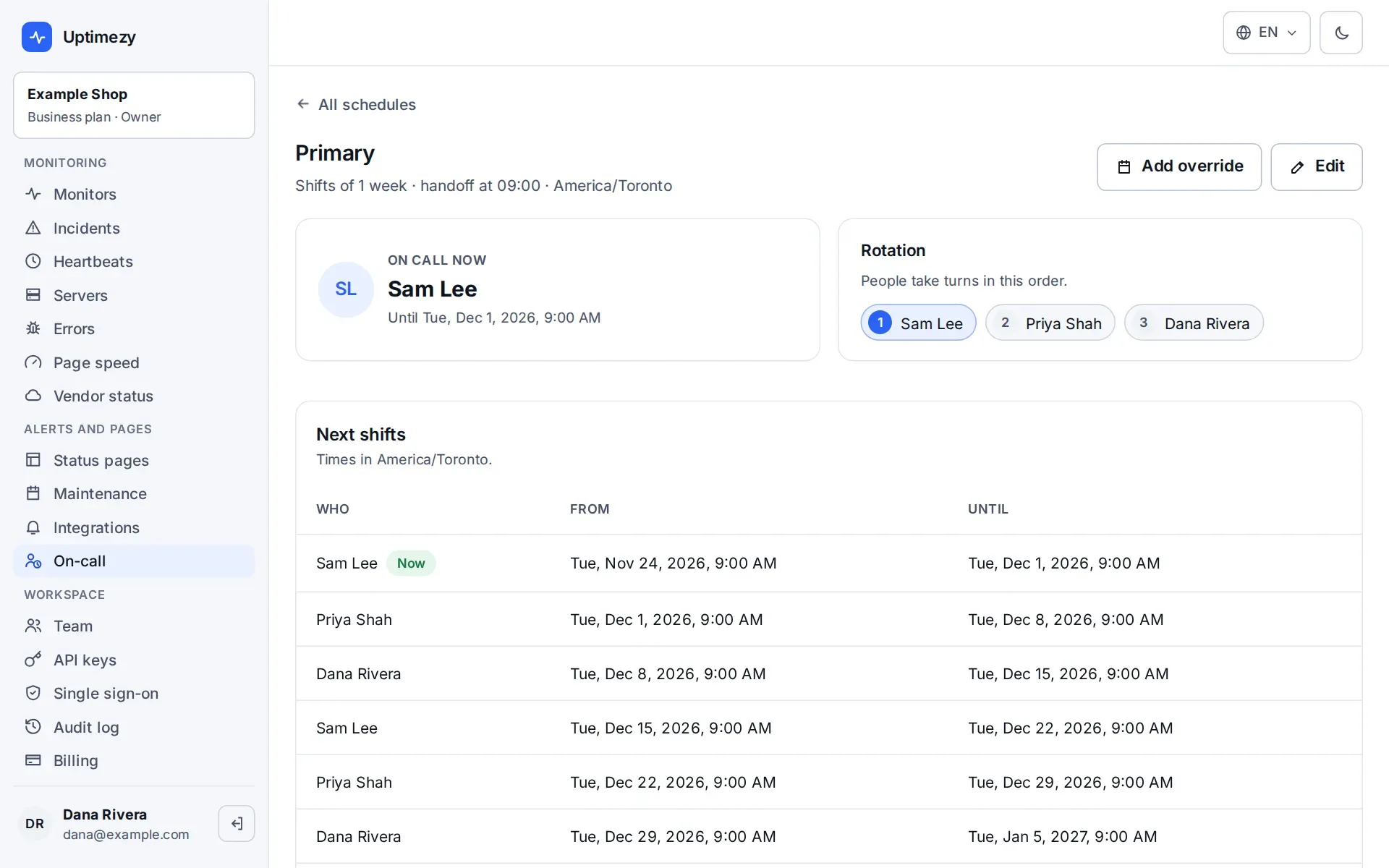
On call

Nights and weekends, one person at a time

Four engineers take a week on call each. Make the rotation on the “On-call” page and name only that schedule in escalation step 1. When a monitor goes down at 02:14, only the person on call that week gets the email, even with their alert emails off. If you chose reminders, they stop as soon as that person acknowledges.

Chat

One shared channel for the whole team

Connect the team's Slack or Microsoft Teams channel once, and alerts land where people already talk. Each card names the monitor, its address, the reason, such as “Unexpected status code”, and since when, in UTC. One link opens the monitor's page, and another opens the incident, where a signed-in member, admin or owner can acknowledge it.

Escalation

A second person when the first is busy

Step 1 emails the developer on duty this week. Step 2, five minutes later, adds the team lead and the team's chat channel. If the developer acknowledges within those five minutes, step 2 never runs. If nobody does, the lead hears at 10:05, and the reminders you chose go to that last step.

Your tools

Incidents into your own ticket system

Point a webhook at your ticket system and incidents arrive as signed JSON: opened, acknowledged and resolved, with the monitor and the cause. With escalation steps, name the webhook in a step; reminders reach it only when it is in the last step. Check the signature with the secret that was shown once, and use the delivery ID to skip a retry you already handled.

PagerDuty

PagerDuty kept in step

Teams that already page through PagerDuty connect it with an Events API v2 key. An incident here opens a PagerDuty alert, acknowledging it here acknowledges it there, and its end resolves it. Reminders are left to PagerDuty's own escalation. Acknowledging in PagerDuty does not change the incident here, so take it in the dashboard too.

Limits

A busy day, read from the delivery log

On a day when a site keeps going down and coming back, the delivery log shows the newest 100 messages and what happened to each, and says how much of the plan's daily allowance the last 24 hours used. Past the limit, new messages show “Not sent” with “Daily limit reached”. Error alerts have an allowance of their own.

What is included

Channels your team already uses

Email, Telegram, Slack, Discord, Microsoft Teams, Google Chat, Mattermost, ntfy, Pushover, PagerDuty and signed webhooks.

Escalation without extra tools

Notify one person first, then others after a delay, and remind the last step up to 10 times until someone acknowledges. An on-call schedule alerts whoever's turn it is, with overrides for holidays.

Fewer, better messages

A failure is confirmed from other regions before anyone is alerted, and during planned maintenance with “Mute alerts during the work” on, the monitors of its status page open no new incident.

A delivery log

Owners and admins see the newest 100 messages, kept for 30 days: which went to whom, when, and whether it was delivered.

In the dashboard

A screen from the dashboard, with example data.

An on-call schedule: who is on call now, the rotation and the next shifts.An on-call schedule: who is on call now, the rotation and the next shifts.

How it works

  1. Add an address, a bot or a webhook and press the test button.

  2. Decide who hears first and how long to wait before the next step.

  3. One click tells the team that someone is on it and stops the escalation.

The full guide

Alerts and escalation, explained

Each chapter opens in place, so the page stays short.

01Where alerts can go

Alerts go by email to the members of your workspace, to 9 chat and push apps, and to webhooks of your own. Owners and admins connect apps and webhooks on Integrations; each member decides about their own emails.

Read moreShow less
ChannelHow it connectsWorth knowing
EmailEach member's own address, with Send me alert emails for this workspaceIn the language of the account, to confirmed addresses only
Slack, Discord, Microsoft Teams, Google Chat, MattermostThe webhook address of one channel or spaceThe dashboard shows the saved address with its secret part hidden, except the last 4 characters
TelegramOur bot, with a connect link that works once, for one hourA private chat or a group
ntfy and PushoverA topic address and token, or your Pushover user keyPushes to phones; a down alert has high priority
PagerDutyAn Events API v2 integration keyOpens, acknowledges and resolves PagerDuty alerts
WebhooksAn address of yours that takes a POST requestSigned JSON, see the chapter on webhooks

After connecting a channel, press the send button in its row (Send a test message) to check that messages arrive: the test message says the chat is connected, and it is not a sample alert. The pause button in the row (Switch off) stops a channel for a while, and the play button (Switch on) starts it again. Each chat channel has its own Language of the messages, so one team can read alerts in French and another in English.

02Who hears about an incident

Alerts belong to the whole workspace, not to one monitor. Without escalation steps, every alert goes to everyone at once: the members whose alert emails are on, and every chat app and webhook that is switched on.

Read moreShow less
  • Every member starts with alert emails on, viewers too. Each person turns their own off or on under Email alerts; nobody can change it for someone else.
  • Alert emails go to members only, to a confirmed address of an account that is not disabled. You cannot add an outside address: use a chat app or a webhook for a shared tool.
  • The messages that an incident ended, or that someone acknowledged it, go to whoever was told that it opened.
  • Someone named twice in the same step is told once.

Certificate and domain warnings, incidents of the vendors you follow and error alerts from your sites go to every member with alert emails on and to every channel and webhook that is on, with or without escalation steps.

03What each message says

A message is written so you can act on it before you open the dashboard. It names what happened, and links to the right page in Uptimezy.

Read moreShow less
MessageWhat it holds
A monitor is downIts name and address, the reason, such as “No answer in time”, since when, and, when more than one place checked, the places that saw it down
A monitor is back upIts address and how long it was down
A heartbeat is late or failedWhen the report was expected, or when the job reported the failure
A server alertThe metric over its limit, the value now, and since when; when a server stops reporting, its last report and whether its address still answers a ping
Someone acknowledgedWho is on it: a person, or the name of an API key
A reminderThe opening message again, marked as a reminder

Times in messages are in UTC. The email about an opening, and each reminder, has a link to acknowledge the incident without signing in. When the workspace requires single sign-on, that link opens the dashboard instead, except for the owner. Viewers get no such link, because they cannot acknowledge. A chat message links to the page of what is down; when it asks someone to take the incident on, it also has an Acknowledge link to the incident in the dashboard, for a member who is signed in.

04Escalation steps and reminders

With escalation steps, a few people hear first and others hear later, if nobody acknowledges. There is one escalation for the whole workspace, for incidents of monitors, heartbeats and servers.

Read moreShow less
  1. On Integrations, under Escalation, press Add step. Step 1 runs When the incident opens.
  2. Choose who it tells: People (by email), On-call schedules, Chats or Webhooks.
  3. Add later steps, and choose under After how long after the opening each one runs: from 5 minutes to 24 hours.
  4. Under If nobody acknowledges, remind the last step, choose up to 10 reminders, from every 5 minutes to every 4 hours, then press Save escalation.
  • A workspace has 10 steps at most. Each comes later than the one before and names at least one target.
  • Reminders go to the last step only. They stop when someone acknowledges, when the incident ends, or after the last one.
  • When someone acknowledges, the later steps never run.
  • PagerDuty gets no reminders: it runs its own escalation.

05On-call schedules

An on-call schedule is a rotation: people take turns, and an escalation step that names the schedule alerts whoever is on call when the step runs. Owners and admins make schedules on On-call.

Read moreShow less
  • A shift lasts from 1 day to 4 weeks and changes at the Handoff time, read in the schedule's Time zone, also when the clocks change.
  • Up to 20 people take turns, in the order you set.
  • An Override puts someone else on call for a while, for a holiday or a swap. Where overrides overlap, the newest wins.
  • Once an escalation step names the schedule, the person on call gets an email when their shift starts. They get alerts by email even when their alert emails are off.
  • When nobody can be alerted, for example before the first shift or after the person left the workspace, the owners and admins are alerted instead.
  • Viewers cannot be on call, because they cannot acknowledge.

06Webhooks for your own tools

A webhook sends a POST request with a JSON body to an address of yours for every alert that goes to it. Each message is signed, so your code can check that it really comes from Uptimezy.

Read moreShow less
  • Events: incident.opened, incident.acknowledged, incident.reminder and incident.resolved, the certificate, domain, vendor and error events, and test.
  • Headers: X-Monitor-Event, X-Monitor-Delivery (the same on every retry), X-Monitor-Timestamp and X-Monitor-Signature.
  • The signature is v1= followed by the HMAC-SHA256 of the timestamp, a dot and the raw body, with the signing secret as the key.
  • Answer with a status from 200 to 299 within 10 seconds. Any other answer, a redirect too, is tried again later.

The webhooks guide shows the whole body and code that checks the signature.

07The delivery log and the daily limit

Every message is written to a delivery log before it is sent, and its result is kept there. Owners and admins read the Delivery log at the bottom of Integrations.

Read moreShow less
ResultWhat it means
WaitingNot sent yet, or waiting to be tried again
SentThe app or the address accepted it
FailedIt could not be delivered; the reason is shown next to it
Not sentLeft unsent on purpose, for example over the daily limit

The log lists the newest 100 messages and keeps them for 30 days. A message that fails is tried 4 times in all: again after 1 minute, after 5 more minutes and after 30 more minutes. A chat that no longer exists, or a key the app refused, is not tried again.

Each plan allows a number of messages in any 24 hours, for the whole workspace: 100 on Free, 500 on Pro, up to 50,000 on Enterprise. Emails, chat messages, webhook messages and tests all count. Over the limit, new messages are Not sent with Daily limit reached, and the test button is refused.

  • Error alerts have their own allowance, a quarter of the plan's number, so errors on a site never use up the room for downtime alerts.
  • The emails that tell someone their shift started count toward nothing.
  • What resolves or acknowledges a PagerDuty alert is sent even over the limit.
08What keeps alerts few, and what does not

An alert is only useful if people still read it. Several rules keep messages few; it helps to know which exist and which do not.

Read moreShow less
  • One failed check is not an outage. The monitor is checked again from the same place 30 seconds later, or at the next check when the interval is shorter, and an incident opens only after two failures in a row.
  • Before the status changes, up to two other places we run checks from check at the same moment, and most must agree. With a single place, the retry decides.
  • One message per event and target: an open incident does not repeat itself, apart from the later steps and the reminders you chose.
  • Planned maintenance on a status page with Mute alerts during the work stops new incidents of that page's monitors while it runs, so their failures send no alert. An incident that was already open stays open, and its reminders and its end are still sent. Certificate warnings still go out.

How checks avoid false alarms is on the false alert prevention page.

Common questions

Can alerts go to whoever is on call?

Yes. An escalation step can name an on-call schedule, and the person whose turn it is gets the alert. On-call schedules come with Pro and the bigger plans.

Can I send alerts to my own system?

Yes. Webhooks are signed, retried on failure and logged.

Can one monitor's alerts go to a different channel?

No. Alerts belong to the whole workspace. Escalation steps decide who hears first and who hears later, the same way for every incident.

Do viewers get alert emails?

Yes. Every member starts with alert emails on, viewers too, and each person can turn their own off on the “Integrations” page. Viewers cannot acknowledge, so their emails have no acknowledge link.

Is there a quiet-hours setting?

No. There are no quiet hours and no snooze. Planned maintenance on a status page can stop new incidents of that page's monitors while the work runs, and with them their alerts.

Can someone outside the team get alert emails?

No. Alert emails go to members of the workspace only. For a shared tool or a ticket system, use a chat app or a webhook instead.

More features

All features

Tell customers before they ask.

Learn more: Status pages

See your site from where your customers are.

Learn more: Multi-location monitoring

An alert means something is really wrong.

Learn more: False alert prevention

Add your first monitor in two minutes

Free plan. No credit card needed.