Server monitoring with a small agent

Install one program and see CPU, memory, disk, network and processes for every server. Sensible alert rules are on from the first minute.

In practice

Where the server agent earns its place

The agent fits any Linux server whose disks, memory or silence should reach someone before the applications on it fail.

Disks

A disk that fills up slowly

Logs, uploads and old backups fill a disk a little every day, until a database cannot write and everything stops. The default disk rule alerts when the fullest disk stays above 85% for 10 minutes. The server's disk table shows which mount point it is, and the alert ends by itself once there is room again.
Memory

A memory leak that grows for days

A leak rarely shows within an hour. On the 7-day or 30-day chart, memory climbs a little every day and falls back only when the service restarts. The busiest processes, listed by CPU, also show the memory each one holds. A rule for memory above 90% for 10 minutes warns you before the memory runs out.

Silence

A server that suddenly goes quiet

When reports stop, the cause can be a stopped agent or a dead machine. Before the alert goes out, we ping the address the server last reported from. When that address can be pinged, the alert says whether it still answers. An answer points to the agent or a blocked way out. No answer points to the machine or its network.

Private networks

Machines with no public address

Build servers, internal databases and office machines often have no public address, so no check from outside can reach them. The agent only connects out, over HTTPS, so it reports from inside the network as long as the machine can reach the internet. There is no port to open and no tunnel to set up.

Tags

Stricter rules for a group

Database servers need more free disk than web servers. Tag them db and add a rule for that tag: fullest disk above 75% for 10 minutes. It works beside the rules for all servers, and a server tagged db later is covered at once. A workspace can have up to 50 rules.

Load

Busy, not broken

A build server can show modest CPU while jobs queue behind a slow disk: time spent waiting for the disk does not count as CPU use, but the waiting processes raise the load average. A rule for load above 8 for 15 minutes on a 4-core server catches that, where a CPU rule would stay quiet.

What is included

Light on resources

A single program. systemd caps it at 64 MB of memory and 10% of one CPU core.

Safe by design

Outbound HTTPS only, no open ports, no remote command execution.

Rules that fit real problems

Combine a metric, a limit and a duration, such as memory above 90% for 5 minutes.

Silence is an alert too

If a server stops reporting, we tell you. When we can, the alert says whether its last address still answers pings: a hint of whether the machine or the agent is down.

In the dashboard

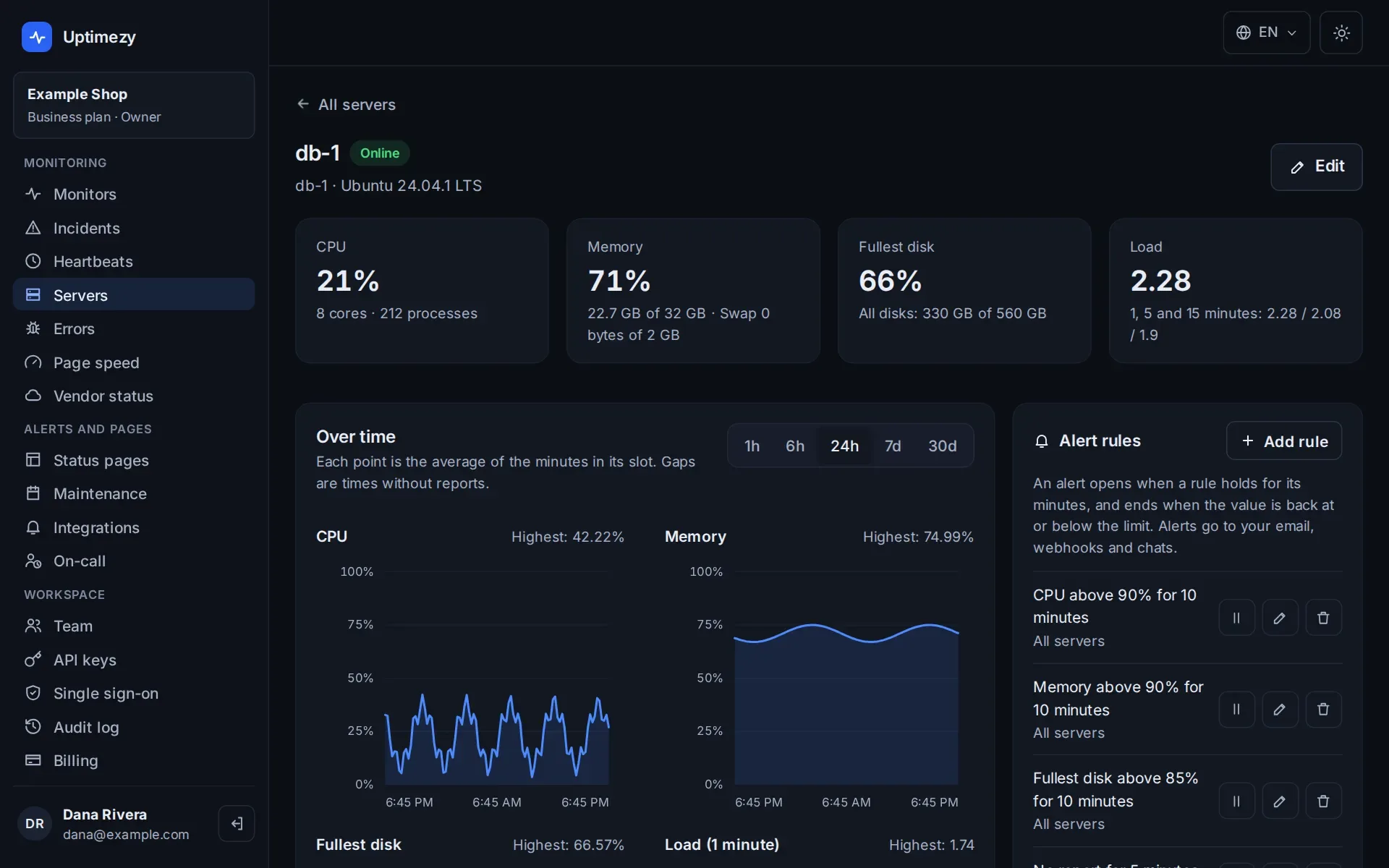
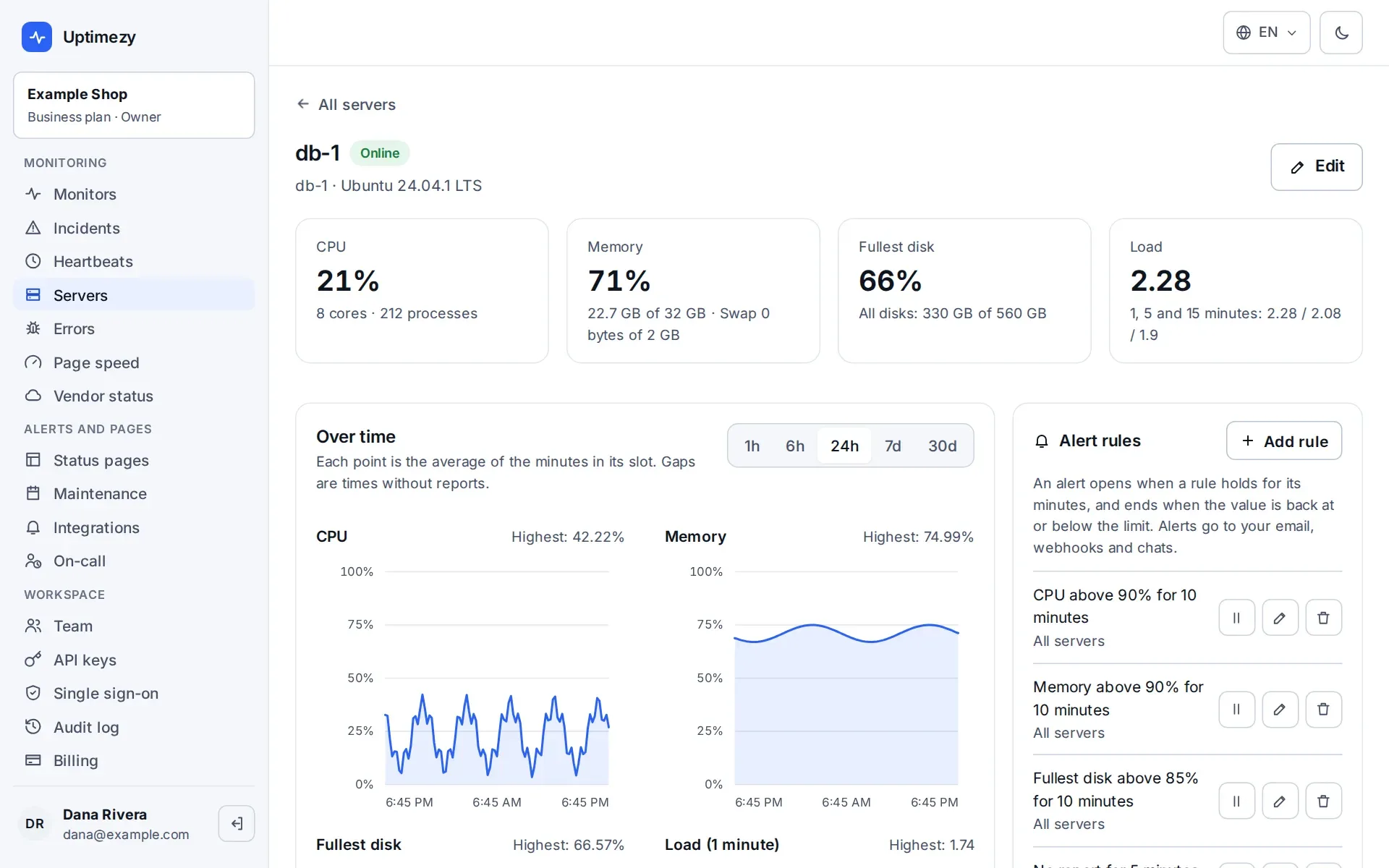
A screen from the dashboard, with example data.

A server's page: CPU, memory, disk and load, with charts of the last 24 hours and its alert rules.A server's page: CPU, memory, disk and load, with charts of the last 24 hours and its alert rules.

How it works

  1. Copy the install command

    Each server gets its own token. Paste one line into a terminal.

  2. The agent starts reporting

    Your server appears in the dashboard in under a minute. With your first server, we add default alert rules for all servers.

  3. Adjust rules by server or tag

    Add stricter limits for one machine or for a whole group. Every rule that matches a server applies.

The full guide

Server monitoring, explained

Nine chapters on what the agent sends, how rules decide and what silence means. Each one opens in place.

01What the agent measures, and what it leaves out

Once a minute, the agent reads the figures the Linux kernel keeps in /proc and the size of each filesystem, and sends what it found. It measures the whole machine, not your applications.

Read moreShow less
MeasureWhat is sent
CPUAll cores together, from 0 to 100%, since the report before. Time spent waiting for the disk does not count as busy
LoadThe load average over 1, 5 and 15 minutes
MemoryUsed and total; used is the total minus what is still available. Swap the same way
DisksUp to 30 real filesystems, such as ext4, xfs or btrfs: where each is mounted, its type, used space and size
NetworkBytes per second in and out, all interfaces together except lo
Busiest processesHow many processes run, and the 10 busiest by CPU with their memory, by name only
SystemHost name, operating system, kernel, processor, CPU cores, memory, when it started, and the agent's version

Every minute is kept for 30 days. The server agent guide lists each field.

02Installing the agent

The agent runs on Linux with systemd, on x86-64 or ARM64 processors. Installing it takes one command, run as root, which carries the server's own token.

Read moreShow less
  1. On Servers, press Add server, type a Name and press Add server.
  2. Copy the install command from the window. Its token is shown only this once.
  3. Paste the command into a terminal on the server.
  4. The server shows Waiting until its first report, a few seconds after the agent starts, then Online.

The command downloads the agent from our server, creates a system user for it without a home directory or a login, writes the token to a file that only root and that user can read, and starts a systemd service that restarts by itself 10 seconds after it stops.

03What the agent can and cannot do on your server

Installing a program on a server takes trust, so the agent is built to need as little as possible. Only the install needs root; the agent itself reads and sends, nothing more.

Read moreShow less
  • It runs as its own system user, not as root.
  • systemd makes the whole system read-only for it (ProtectSystem=strict), home directories too, and gives it no new privileges.
  • systemd also caps it at 64 MB of memory and 10% of one CPU core (MemoryMax=64M, CPUQuota=10%).
  • It only connects out, over HTTPS, to our address. It opens no port, takes no commands and runs no programs.
  • It reads process names, never command lines, because a command line can hold passwords.
  • Its token starts with agent_ and travels in a header. We keep a hash of it and its first few characters, so nobody can read the token back.

On our side, every report is checked field by field when it arrives, and a server can report at most once every 30 seconds.

04Reading a server's page

Servers lists every server with its Status, CPU, Memory, Fullest disk and Last report. Open one to see where those numbers come from.

Read moreShow less
  • At the top of the page, four tiles show the newest report: CPU with its cores and the number of processes, Memory with swap, Fullest disk with the share of the fullest disk and the space of all disks together, and Load.
  • Over time: CPU, memory, the fullest disk, the 1-minute load and the network, from 1 hour to 30 days. Each point is the average of the minutes in its slot, and gaps are times without reports.
  • Disks: every real filesystem with its mount point, type, used space and size.
  • Busiest processes: the 10 busiest by CPU since the report before. A process above 100% uses several cores.
  • System: host name, operating system, kernel, processor, cores, memory, when it started and the agent's version.

05How an alert rule decides

A rule is a metric, a limit and a number of minutes, such as memory above 90% for 10 minutes. It fires only when the limit held for the whole time, so a short spike never wakes anyone.

Read moreShow less
  • The alert opens when every report of those minutes is above the limit, and there are reports for at least 80% of them. One lost report does not hide a problem.
  • It starts at the first report of that window, so its length includes the minutes the rule waited.
  • It ends with the first report at or below the limit. Missing reports never end an alert.
  • Fullest disk watches the fullest filesystem, and a load rule watches the 1-minute load average: a server with 4 cores is fully busy at about 4.
  • Changing, switching off or deleting a rule ends its open alert without a message.
RuleLimit
CPUAbove 90% for 10 minutes
MemoryAbove 90% for 10 minutes
Fullest diskAbove 85% for 10 minutes
No reportFor 5 minutes

These four rules come with a workspace's first server, for all servers, when the workspace has no rules yet. Change them or add your own under Alert rules on any server's page.

06One server, a tag or every server

Each rule watches one server, the servers with one tag, or all servers. Every rule that matches a server is judged, so rules add up rather than replace each other.

Read moreShow less
  • Give servers tags with Edit on their page: up to 10 each, such as web or db. Capitals and spaces are tidied, so Web servers becomes web-servers.
  • A rule for a tag watches every server with that tag, also the servers tagged later.
  • A stricter rule for one server works beside the rule for all servers, and each rule opens its own alert.
  • A looser rule cannot quiet a stricter one. To give one server more room, replace the rule for all servers with a rule for a tag, and leave that server out of the tag.
  • A workspace has up to 50 rules. Rules are made in the dashboard by members, admins and owners, not through API keys.

A common set: memory and CPU above 90% for all servers, the fullest disk above 75% for the servers tagged db, because a database needs room to grow, and no report for 5 minutes everywhere.

07When a server stops reporting

A quiet server shows in two ways. After 3 minutes without a report, the list shows Not reporting; an alert opens only when the minutes of a no-report rule have passed, 5 by default and 3 at least.

Read moreShow less
  • We look for quiet servers every 30 seconds.
  • Before the alert opens, we ping the address the server last reported from, once, for up to 5 seconds.
  • The alert starts at the time of the last report, and the next report ends it, with a message that the server reports again.
  • A server that never reported is not watched for silence: it still shows Waiting.
The pingThe alert saysLikely cause
AnsweredIts last address still answers pingsThe server is on; the agent stopped or cannot reach us
No answerIts last address does not answer pings eitherThe server or its network is down, or it never answers pings
Not possibleNothing about pingsNo public address to ping, or no ping from our side

08The agent beside your monitors

The agent sees a server from the inside; monitors see your services from the outside. Each one misses what the other sees, so most servers deserve both.

Read moreShow less
Server agentMonitors
It seesCPU, memory, disks, load, network and processesWhether a site, a port or a host answers from the internet
It missesWhether visitors can reach the siteA disk at 95% before it is full
It needsLinux with systemd, and a way out over HTTPSA public address
Machines in a private networkWork: nothing needs to reach themCannot be checked

A common pair: the agent on each server, a ping monitor on its public address and a website monitor on what it serves. For jobs that run on the server, such as backups, add a heartbeat.

09Updates, removal and plan limits

The agent does not update itself: you choose when. Removing a server from the dashboard and removing the agent from the machine are two separate steps.

Read moreShow less
  • To update, run the install command again. It downloads the agent again and keeps the token in the command.
  • Lost the command? New token on the server's page gives a new token with a new command, and the old token stops working at once.
  • Remove server deletes the server and its minutes, and its token stops working. It does not remove the agent from the machine: run the uninstall command shown under Remove this server there.
  • Each plan has its own number of servers, 1 on the Free plan. After a move to a smaller plan, the newest servers over it show Over plan and their reports are refused; nothing is deleted.
  • Servers can be added, renamed, tagged and removed through the REST API with the servers permissions. AI assistants can read servers, their minutes and their alerts.

Common questions

Which systems are supported?

Linux with systemd, on x86-64 and ARM64 processors.

Can the agent change anything on my server?

No. It reads metrics and sends them. It has no feature to run commands or change files.

Does the agent need an open port on my server?

No. It only connects out, over HTTPS, to our address. Nothing needs to reach the server, so it also works behind a firewall or in a private network that can reach the internet.

How much does the agent use?

systemd caps it at 64 MB of memory and 10% of one CPU core. Once a minute it reads the kernel's figures from /proc and sends one report.

Can it alert on a process or on network traffic?

No. The server's page lists the 10 busiest processes and charts the network, but rules watch CPU, memory, swap, the fullest disk, the load and missing reports. For a service, add a port or website monitor.

How long are a server's minutes kept?

Every minute is kept for 30 days and then deleted. The charts reach as far back: from 1 hour to 30 days.

Can a server be on my status page?

No. Status pages show monitors. Add a ping or website monitor for the server and show that monitor instead.

More features

All features

Hear when a service you depend on has trouble.

Learn more: Third-party status

See the JavaScript errors your visitors meet.

Learn more: Error tracking

Know the moment a site stops answering.

Learn more: Uptime monitoring

Add your first monitor in two minutes

Free plan. No credit card needed.