Keyword monitoring: check what a page says, not only that it loads
A page can answer 200 OK and still be broken: an empty shop, an error message, a maintenance notice. A keyword monitor reads the page on every check and tells you when a word you expect is gone, or a word you fear appears.
A keyword monitor fits pages that can break while they still answer 200: the server is fine, but what it sends is wrong.
shop.example.com/mug
Status code200
“Add to cart”Keyword not found on the page
Online shop
An empty shop that still answers 200
When the product database stops answering, many shops still send a page with status 200: a header, a footer and nothing to buy. A website monitor sees nothing wrong. A keyword monitor that expects “Add to cart” on a product page fails with “Keyword not found on the page”, and the incident opens like any other.
app.example.com
<div class="content"> <p><b>Fatal error</b>: Uncaught PDOException: could not connect</p></div>
Errors
Error messages printed in a page
Many applications print an error into the page instead of sending an error status: a database error, a stack trace, a line that starts with “Fatal error”. A monitor set to “must not be on the page” fails with “Unwanted keyword found on the page” when such a text appears, and the alert names the page, so you know where to start.
www.example.com
Status code200
“Back soon”Unwanted keyword found on the page
www.example.comMicrosoft Teams
Maintenance
A maintenance notice left on
A deploy that ends with the maintenance notice still showing looks harmless to a plain status check. Look for the words of your own notice, such as “Back soon”, with “must not be on the page”. To keep it quiet during the planned work itself, plan that work, with alerts muted, on a status page that shows the monitor.
08:00All systems operational
08:41Keyword not found on the page
08:41Checked again 30 s later
08:42Incident opened
Providers
Status pages you do not run
Some services you depend on publish a status page but are not in our list of vendors. If that page is not drawn by JavaScript, a keyword monitor can expect the words it shows when all is well, such as “All systems operational”. When the wording changes, the check fails and your channels hear about it with everything else.
example.com
<footer> <p>Example Ltd, since 2009</p></footer>
Security
A page that was replaced
If a site is defaced, or its domain starts pointing elsewhere, the new page may answer 200 just like the old one. A keyword that only your real page contains, such as your company name in the footer, disappears with it, and the check fails with “Keyword not found on the page” even though the server answers normally.
“Out of stock”
“Spring sale”Unwanted keyword found on the page
Content
Stock, prices and offers
A key product that sells out, or a sale banner left on after the sale, never breaks a page. Watch the product page for “Out of stock” with “must not be on the page”. When a sale ends, watch the campaign page for the offer's own words, also with “must not be on the page”. Each keyword is its own monitor, and each counts toward your plan.
What is included
Must be there, or must not
Choose a word or a sentence that must be on the page, such as “Add to cart”, or one that must never be, such as “Database error”. Up to 200 characters.
Upper and lower case do not matter
“Pay now” also finds “PAY NOW” and “pay now”.
The page your server sends
We search the HTML your server sends, up to its first 1 MB. Text that a script adds later in the browser is not part of it.
The status code counts too
The page must also answer with the status you expect: a class such as 2xx, the default, or one code such as 200.
Checked again before you hear
A failed check is repeated, and other regions run it too, before an incident opens. One bad moment does not wake you.
Everything a website monitor has
Response time in steps, warnings before the certificate or the domain expires, uptime statistics and an SLA goal work for keyword monitors too.
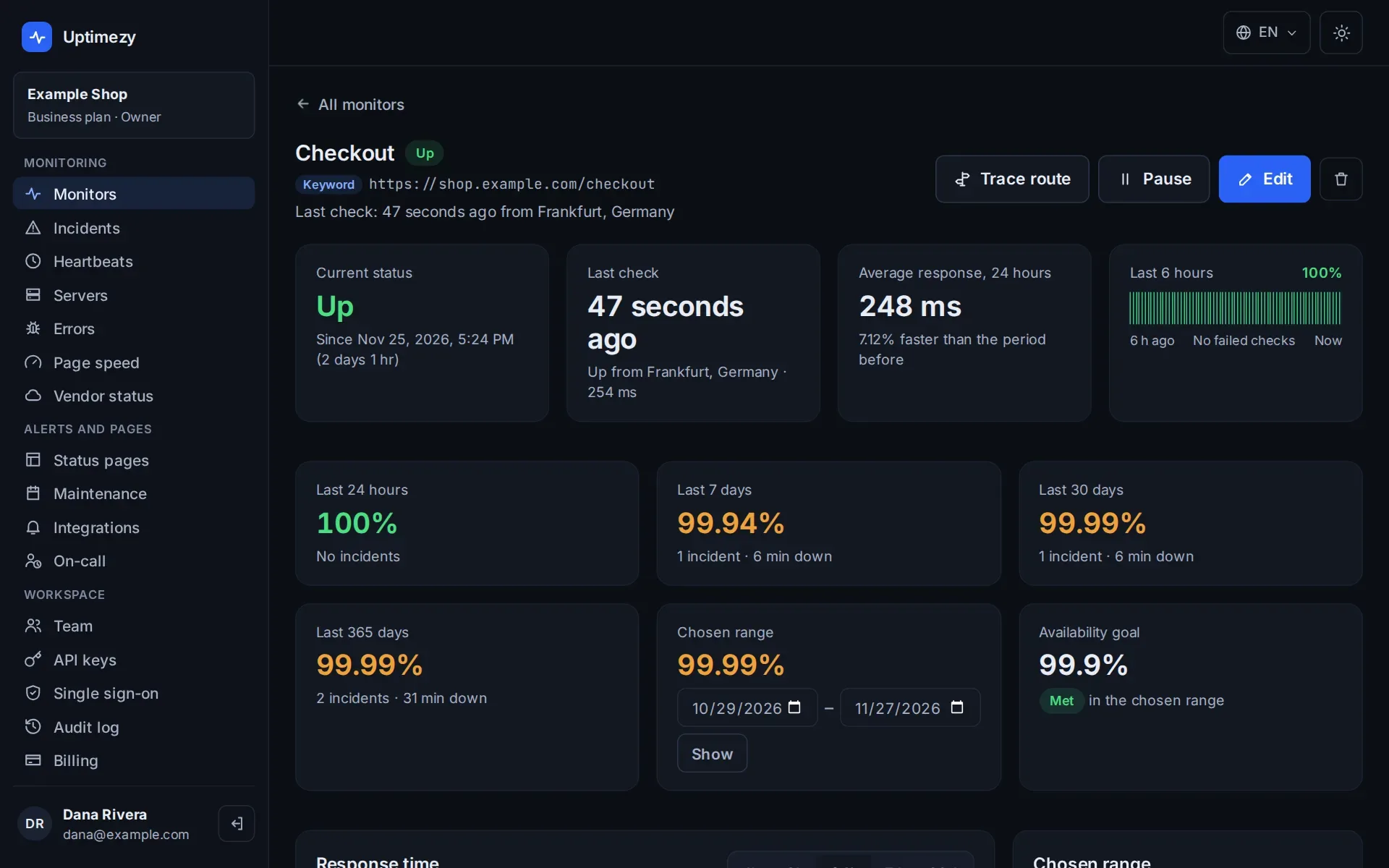
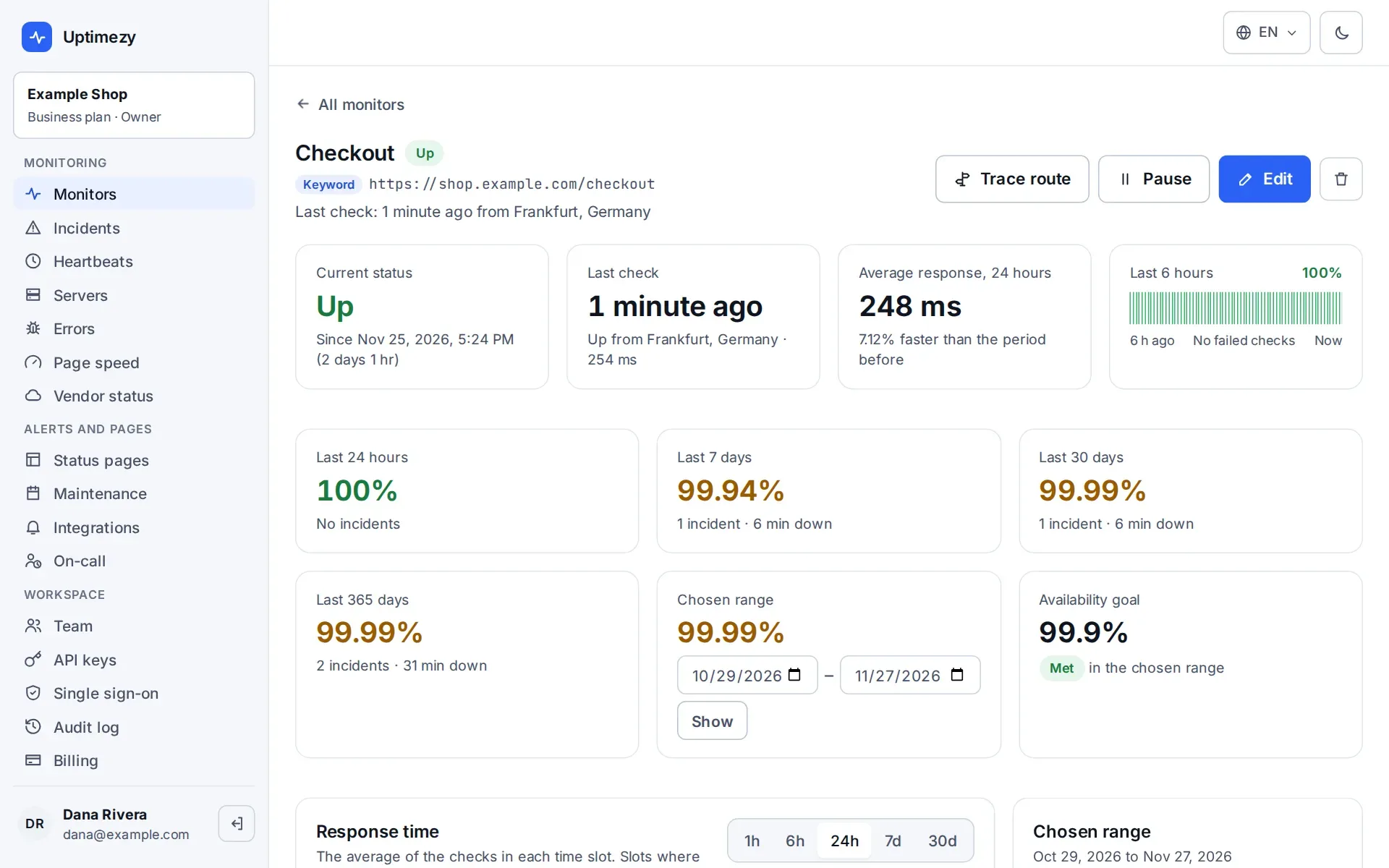
In the dashboard
A screen from the dashboard, with example data.
How it works
Step 1
Add the page
Paste its address and choose Keyword as the type.
Step 2
Choose the words
Type the words and whether they must be on the page or must not be.
Step 3
Hear why
The alert says “Keyword not found on the page” or “Unwanted keyword found on the page”, so you know what to look for.
The full guide
Keyword monitoring, explained
Seven chapters on choosing words that hold, and reading what the monitor tells you. Each one opens in place.
01How the keyword is matched
On every check, the monitor reads the page your server sends and looks for your keyword in it. The search ignores upper and lower case, and nothing else. The keyword must appear in the page's source as you typed it, spaces and punctuation included.
Read moreShow less
In the page's source
Keyword
Found?
ADD TO CART
Add to cart
Yes: case does not matter
<b>Add</b> to cart
Add to cart
No: a tag sits between the words
Tom & Jerry
Tom & Jerry
No: the source writes &
<meta content="Add to cart">
Add to cart
Yes: tags, attributes and scripts count too
Only the first 1 MB of the page is searched.
The page is the last one after redirects, up to 5.
Spaces at the start and the end of the keyword are removed. It can be up to 200 characters long and cannot hold a line break.
No script runs, so text that JavaScript adds in the browser is not there.
02Must be there, or must not
A keyword monitor asks one of two questions. Must be on the page proves that the page still does its job; Must not be on the page watches for a sign that it does not.
Read moreShow less
Must be there
Must not be there
Good keywords
“Add to cart”, your company name, a sentence only the working page has
“Fatal error”, “Out of stock”, the words of your maintenance notice
It fails with
“Keyword not found on the page”
“Unwanted keyword found on the page”
Watch out for
Text that changes often, such as a price or a date
Words that are always somewhere in the source, such as in a script
Either way, the status code is checked first. A page that answers with another status than the Expected status code fails with “Unexpected status code”, even when the keyword is right.
03Choosing a keyword that lasts
A false keyword alert often comes from words that changed, not from a broken page. Take the keyword from the page's source rather than from the screen, and prefer text that changes only when something is wrong.
Read moreShow less
Open the page's source in your browser (View page source) and search for the words there. If they are not in the source, the monitor cannot see them.
Copy a short phrase with no markup inside it, such as the text of a button.
Avoid prices, dates, counters and people's names: they change without anything being wrong.
Be careful with &, quotes and accented letters, which a source may write as entities such as &. Copy them from the source as they are written there.
For Must not be on the page, search the whole source for the words first. An error text that also sits in a script or in translations written into the page is always found.
04Setting up a keyword monitor
A keyword monitor is a website monitor with one more field. Once you have chosen the words, it takes a minute to add.
Read moreShow less
Open Monitors and press New monitor.
Under What to check, choose Keyword and type the page's full Address.
Type the Keyword, then choose Must be on the page or Must not be on the page under The keyword.
Check the Expected status code: 2xx at first, or one exact code such as 200.
Choose the Check interval and the Timeout, then press Create monitor.
A keyword monitor always uses GET, because it must read the page. The first check runs within a minute. If it fails at once, look at the page's source again before you suspect the site. The website monitoring guide describes the same fields.
05Pages that look different to our check
Our check is not a visitor's browser. It has no cookies, no account and no preferred language, so some sites send it something other than what you see.
Read moreShow less
No sign-in: a page that shows its content only to signed-in visitors sends our check its sign-in page, or a redirect to it.
No cookies: a cookie banner, a first-visit page or a consent page may be what the check reads.
No language: the check sends no Accept-Language header, so a site that chooses a language from it sends its default one.
Our User-Agent: a bot filter may answer with a challenge page instead of yours. Let our checks through a firewall shows how to recognise our checks.
Different places: when we run checks from more than one place, a site that changes its content by country can answer each one differently.
When other places run the check too, a failure that only one place sees does not open an incident: most of them must agree.
06Reading a keyword alert
A keyword alert tells you which page failed and why. The keyword itself is not in the alert; it is in the monitor's settings.
Read moreShow less
Reason
What it means
Look first at
“Keyword not found on the page”
The status was right, but the words are not in the first 1 MB
The page's source: is the content there, or did the wording change?
“Unwanted keyword found on the page”
The status was right, and the unwanted words are in the page
Where the text comes from: an error, a notice, a template
“Unexpected status code”
Another status came back, so the keyword was not looked at
The server and its logs
“No answer in time”
The answer did not arrive within the Timeout
The server's load and the page's size
“The response came too slowly”
The status and the keyword were right, but the answer was slower than your limit
The response time chart: since when, and from where
Like every monitor, a keyword monitor checks again before it alerts: two failures in a row, and most places must agree. Fewer false alarms explains how.
07When an API monitor is the better tool
A keyword is a plain text search. When what you check has structure, such as JSON from an API, or needs a header to sign in, an API monitor says more.
Read moreShow less
Keyword monitor
API monitor
Request
GET only, with our headers
Any of 7 methods, with your headers and a body
Checks
One keyword, there or not
Several checks on JSON values and on the answer's headers
Comparisons
Contains, without regard to case
Equals, contains and exists, each with its opposite, and less than or greater than
Slow answers
A slowest allowed response that you choose
The same
Behind a sign-in
No
Yes, with a header such as a token
For a plain web page, a keyword monitor is simpler and enough. See API monitoring for the rest.
Common questions
Does it see text that JavaScript adds?
No. We read the page as your server sends it, before any script runs. Pick words that are in that HTML: your browser shows it with “View page source”.
Can one monitor look for several words?
One monitor looks for one keyword, which can be a whole sentence. For more words, add a monitor for each: every one counts toward your plan's monitors.
Which status codes count as up?
2xx unless you choose another class or one exact code, such as 200. Redirects are followed, so the status of the last page counts. A page with the wrong status is down even when the keyword is there.
Why does my keyword fail when I can see it on the page?
The words on screen may not be in the source as you typed them: a tag between two words, an entity such as & for &, or text that JavaScript adds. Open the page's source in your browser and copy the keyword from there.
Does it search the whole page?
It searches the first 1 MB of what the server sends, tags and scripts included. Most pages are smaller than that. On a larger page, choose words near the top of the source.
Can I try a keyword before I save the monitor?
Not with the free check on our website, which does not look for keywords. Search the page's source in your browser instead, then save the monitor and look at its first check.
Can I add keyword monitors without the dashboard?
Yes. Through the REST API, or an AI assistant connected over MCP, create a monitor of the type keyword with its address, the keyword and whether it must be on the page or not.