Third-party status monitoring for the services you depend on

Your site can be fine and still fail because of someone else: a cloud host, a code host, an AI service. Follow their status pages and hear when an incident starts and when it is over.

In practice

Where following a vendor earns its place

Your site rests on services you do not run. Following them pays off wherever an outage of theirs would look like a failure of yours.

Hosting

Is it us or the host?

Your website monitor fails at 03:10 with “Connection refused or dropped”. Soon after, the host you run on reports a major outage on its status page. We read that page every 2 minutes, so the vendor alert reaches the same chat shortly after. It does not change your monitor or its incident, but the person who reads it knows where to look first.
Platforms

Only the parts your app runs on

Your app runs on Cloudflare Workers and uses its queues, and no other Cloudflare product. Follow Cloudflare and choose only the parts you use, such as Workers and Queues. Incidents about other products stay quiet, while an incident that names no part at all still reaches you, because it may touch everything.

AI

Features built on an AI service

A chat assistant or a summary button in your product depends on an AI provider you do not run. Follow OpenAI or Claude, and you hear when the provider reports an outage and again when it says the outage is over. Your support team can then point to the provider's own words and link instead of guessing.

Noise

Big services, many small incidents

A large cloud provider can report several minor incidents a week, each about one small part of one product. Leave the level at major and critical outages, the default, and you hear only about the larger ones. If the vendor raises a minor incident to major later, the alert goes out at that moment, not when it was first posted.

Email

When your email provider has trouble

Sign-up and password emails that never arrive look like a bug in your product. Follow your email provider, such as Mailgun. Its alerts go to every webhook and chat of the workspace, so add a webhook for your own tools. Your own tools receive the vendor, the incident's name, its impact and the vendor's status word, and can post a note for your support team.

Overview

All your dependencies on one screen

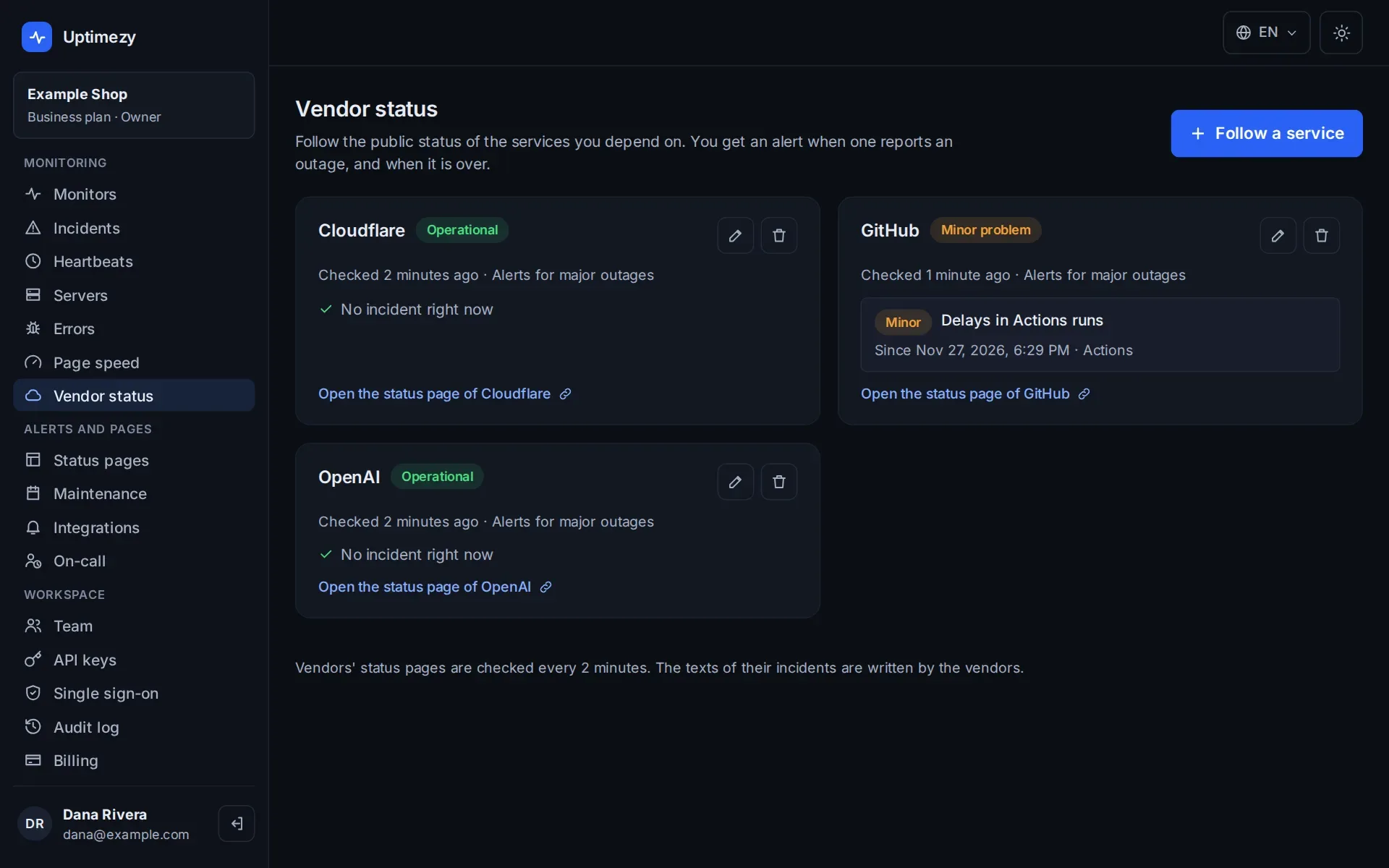
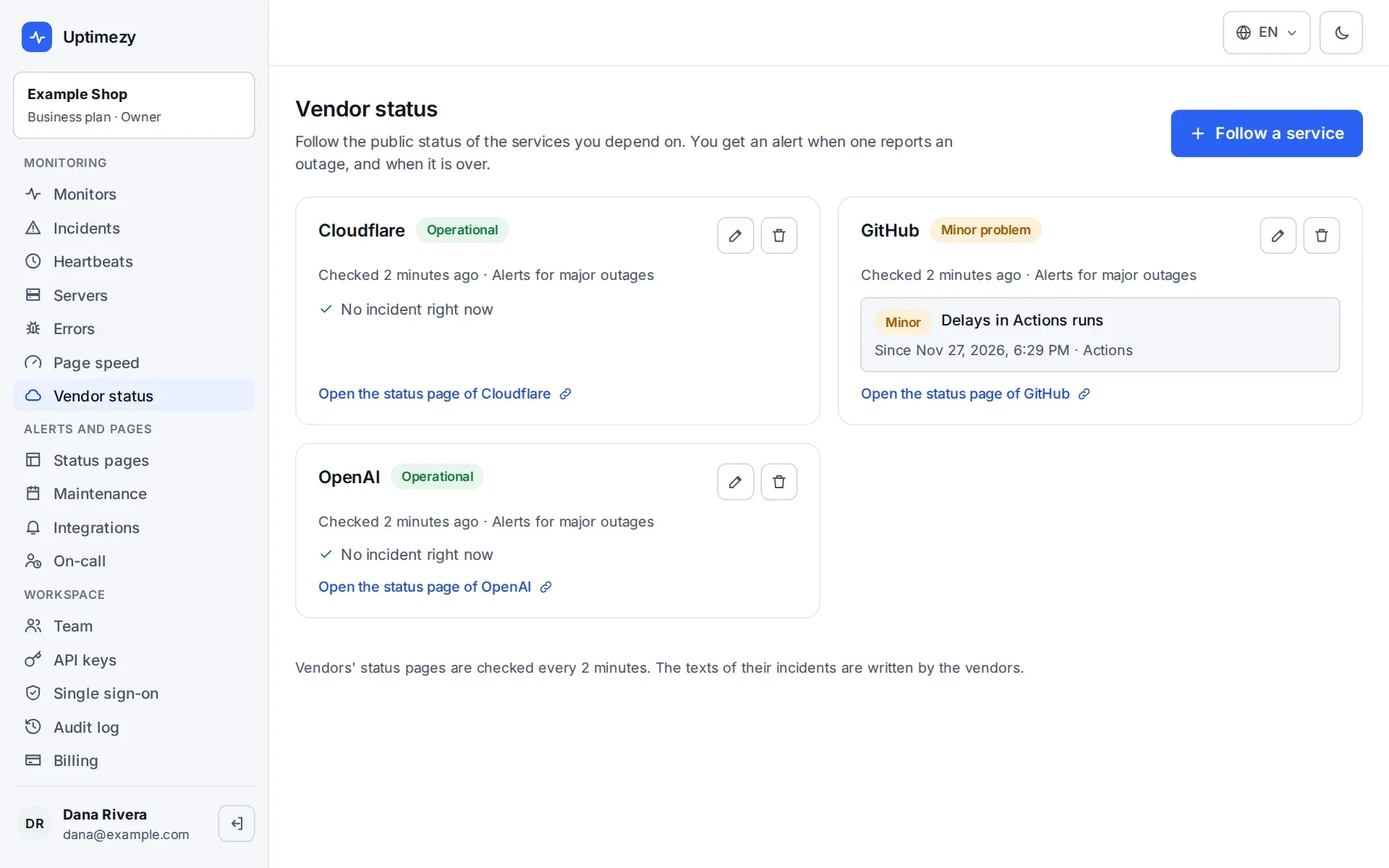
The “Vendor status” page shows every service you follow with its status, its open incidents and those that ended in the last 7 days. A service whose status page has given no good answer for 10 minutes shows “Not known” rather than a guess, so a quiet card means that the vendor reports no incident, not that nobody looked.

What is included

30 services

GitHub, Cloudflare, and OpenAI and more: cloud and hosting, code and deployment, AI, chat, email and commerce.

Only the parts you use

Choose the parts of a service that matter to you, such as one region or one product, or all of them.

The impact you care about

Hear about minor, major or critical incidents only. Major is the default.

When it starts and when it ends

One alert when an incident starts and one when it is over, through your usual alert channels.

Read every 2 minutes

When a status page stops answering, the service shows as unknown after 10 minutes instead of guessing.

Maintenance without noise

Maintenance that is going on is shown, but never alerts.

In the dashboard

A screen from the dashboard, with example data.

The Vendor status page: GitHub, Cloudflare and OpenAI followed, with an incident at GitHub.The Vendor status page: GitHub, Cloudflare and OpenAI followed, with an incident at GitHub.

How it works

  1. Pick it from the list on the Vendor status page.

  2. All parts, or only some, and the smallest impact that should alert you.

  3. Know it is them, not you, before your customers ask.

The full guide

Third-party status, explained

Seven chapters on how vendors' statuses are read, which incidents alert you and how to keep the noise down. Each one opens in place.

01How a vendor's status reaches you

Each of the 30 services in the list publishes a status page. We read it every 2 minutes, the same way for every workspace, and compare what it says with what it said before.

Read moreShow less
  • What is read: the overall status, the parts of the service, the incidents that are open, and maintenance while it is going on.
  • Planned maintenance that has not started is not read. Maintenance that is going on is shown, but never alerts.
  • An incident ends when the vendor marks it resolved, or when two answers in a row no longer list it.
  • When a status page does not answer, or answers with something we cannot read, nothing known changes: no incident ends because of it.
  • After 10 minutes without a good answer, the status shows as Not known instead of a guess.

Names of incidents and parts are written by the vendors, in their language. We show them as plain text, on one line. Links go only to the vendor's own status page.

02Which incidents alert you

Following a service does not mean hearing about everything it posts. An incident alerts your workspace only when all of these are true.

Read moreShow less
  • It is an incident, not maintenance.
  • Its impact, as the vendor rates it, is at your level or above.
  • It is about a part you follow, or it names no part at all.
  • It was first seen after you followed the service, or after you last saved the follow's settings.
  • Its start, as the vendor gives it, is no more than an hour before you followed the service or last saved its settings.

The rules are checked again at every reading. When the vendor raises an incident from minor to major, and major is your level, the alert goes out at that moment.

03Choosing the alert level

The level is the smallest impact that alerts you. Major and critical outages (recommended) is the default, and the right choice for most services.

Read moreShow less
LevelWhat alerts
All incidents, minor ones tooEvery incident rated minor, major or critical
Major and critical outages (recommended)Incidents rated major or critical
Critical outages onlyIncidents rated critical only

The impact is the vendor's own rating. An incident it does not rate, or rates as information only, never alerts. Slack's status has no ratings: an outage counts as major, an incident as minor and a notice as information, so at the default level only Slack's outages reach you.

Each alert is a message to every alert email, chat and webhook of the workspace, and counts toward the plan's daily messages. For a service that posts often, a higher level keeps room for your own alerts.

04Following only the parts you use

Big services are made of many parts, such as products and features. Choose Only some parts (such as one region or one product), and incidents about the other parts stay quiet.

Read moreShow less
  1. Open Vendor status and press Follow a service, or the edit button on the card of a service you already follow.
  2. Under Parts of the service, choose Only some parts (such as one region or one product).
  3. Search the list and pick up to 50 parts.
  4. Press Follow, or Save changes for a service you already follow.
  • An incident that names no part counts for every part, so it still alerts.
  • The parts are the vendor's own, as its last answer listed them. Until the first answer, every part is followed.
  • Saving new parts counts as a change of settings: incidents already open do not alert afterwards.

05What you hear, and what you do not

A vendor alert has two moments: when the incident starts, and when it is over. The vendor's updates in between stay on its status page.

Read moreShow less
  • The start: the service, the incident's name, its impact, since when, and a link to the vendor's page.
  • The end: how long it lasted, from when to when. Only workspaces that heard about the start get it.
  • Webhooks get the events vendor.incident and vendor.resolved, with a vendor and a vendor_incident object. See Webhooks.
  • In PagerDuty, the start opens an alert and the end resolves it.

Vendor alerts go to every alert email, chat and webhook at once. They are not your incidents: they have no escalation steps, no on-call schedule and nothing to acknowledge, and they are not in your list of incidents.

If you stop following a service during an incident, no message about its end follows.

06Reading the Vendor status page

Vendor status shows a card for each service you follow. It is the place to look when an alert comes, or when something feels wrong.

Read moreShow less
On the cardWhat it means
The statusThe vendor's overall status: Operational, Minor problem, Major outage, Critical outage, Maintenance or Not known
The line under the nameWhen the last good answer came, your alert level and how many parts you follow
Open incidentsImpact (or maintenance), name, since when and the parts named. The name links to the incident on the vendor's status page when the vendor gives that link.
Ended incidentsThose that ended in the last 7 days, folded under the open ones

Every role can read the page. Members, admins and owners follow services and change how they alert. The link at the foot of each card opens the vendor's own status page.

07Vendor status next to your own monitors

Your monitors measure your own site; vendor status says what the services under it report. Each one answers a question the other cannot.

Read moreShow less
  • A vendor alert never changes your monitors, their incidents or their uptime figures.
  • Your public status pages show your monitors only, never a vendor's status.
  • A vendor may take a while to post. Your monitors do not wait for it, so they can tell you first.
  • A vendor incident does not prove that your problem is theirs: compare the times and the parts it names before you blame it.

The same statuses are public on our Is it down? pages, such as the one for GitHub, so you can send a link to someone without an account.

Common questions

Can I add a service that is not in the list?

Not yet. The list is fixed, so every status page in it is one we know how to read. Tell us which one you need.

Does following a service count as a monitor?

No. Following is not a monitor, and every plan can follow all 30 services.

I followed a service during an outage. Why did no alert come?

An incident never alerts if it was seen before you followed the service or last saved its settings. It also never alerts if the vendor gives a start more than an hour before that. The open incident still shows on the service's card.

Do I get the vendor's updates while an incident goes on?

No. You get one message when the incident starts and one when it is over. The updates in between are on the vendor's status page, which the alert links to.

Does a vendor incident count against my uptime?

No. Vendor incidents are not your incidents: they never change your monitors, their uptime figures or your status pages.

Why does Slack rarely alert at the default level?

Slack's status gives no impact. We count an outage as major and an incident as minor, so at the default level only Slack's outages alert. Choose “All incidents, minor ones too” to hear about Slack's incidents as well. Notices never alert.

More features

All features

See the JavaScript errors your visitors meet.

Learn more: Error tracking

Know the moment a site stops answering.

Learn more: Uptime monitoring

Know when a page says the wrong thing.

Learn more: Keyword monitoring

Add your first monitor in two minutes

Free plan. No credit card needed.